A PDF keeps a fixed copy of a web page. It is useful for receipts, tickets, articles, and reference material you want to keep.
Method 1: Save as PDF in Safari
- Open the page in Safari.
- Tap the Share button.
- Tap Options at the top of the share sheet and choose PDF.
- Tap Save to Files and pick a folder.
Method 2: Use a dedicated app
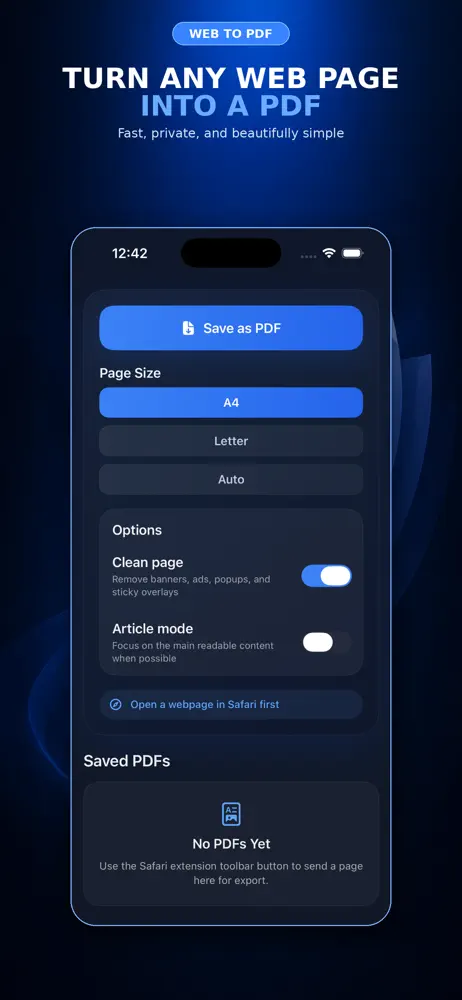
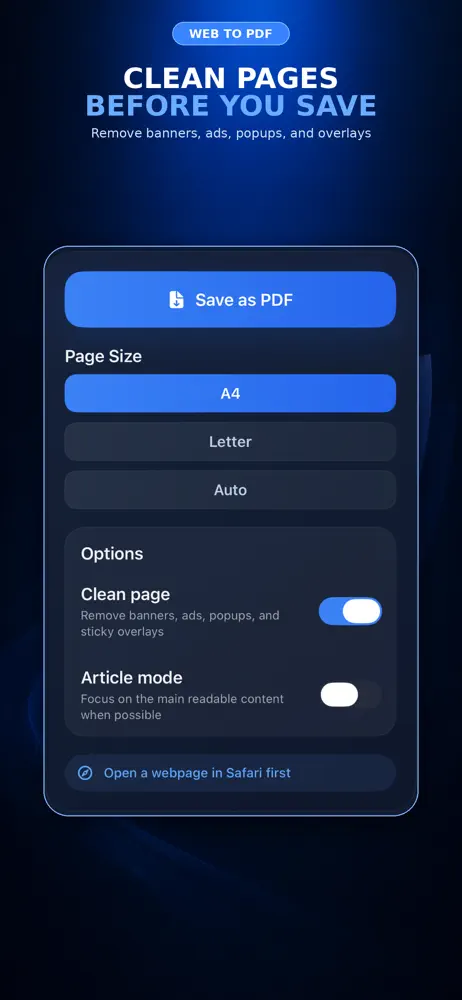
An app such as Web to PDF converts the page for you and keeps your PDFs in one place. This is handy if you save pages often.
When PDF is the right choice
- Receipts and order confirmations
- Booking details and tickets
- Articles you want to read offline
- Documentation you may need later
Tips
- Scroll to the end of the page first so all content loads
- Use clear file names, for example 2026-05-hotel-booking.pdf
- Store PDFs in a folder per topic
If the PDF is blank, cut off or missing images
Capture the loaded page you can actually see. Website access restrictions and interactive elements can change the result.
- Wait for images and the main article to load before saving.
- If a pasted URL opens a login page, try saving from the authorized page in Safari.
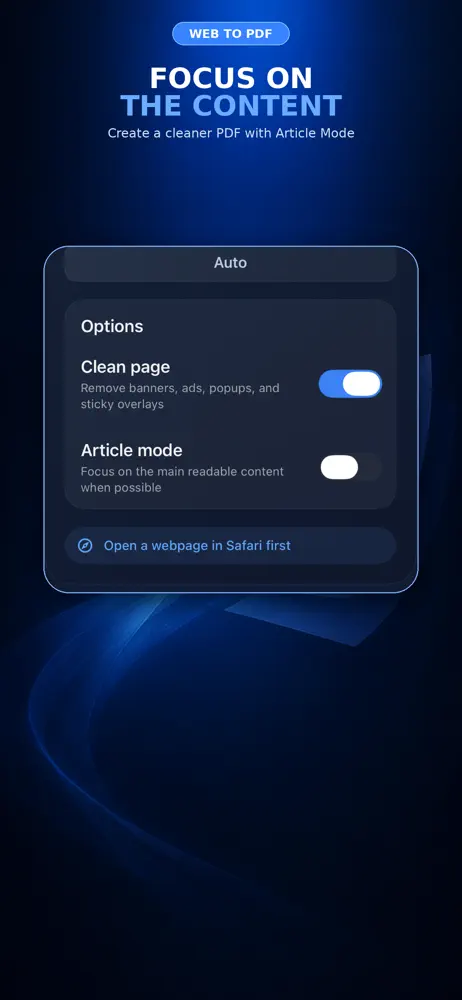
- Preview the last paragraph and images. Try a different layout or Article Mode when available.
- For a private receipt, check the export locally; do not send the page to an online converter without reviewing its privacy terms.
Frequently asked questions
Will links in the PDF still work?
Often yes, but the saved page does not update if the original changes.
Why is part of the page missing?
Some elements load as you scroll. Scroll first, then save.
Where is the PDF saved?
In the folder you choose in the Files app.