Photos taken in public places often show bystanders and vehicles. Blurring faces and license plates before posting helps protect their privacy and yours.
When to blur
- Photos with bystanders or children
- Pictures of your home, car, or street
- Marketplace listings showing your vehicle
- Event or travel photos you will post publicly
How to blur a photo on iPhone
- Open the photo in a blur-capable editing app.
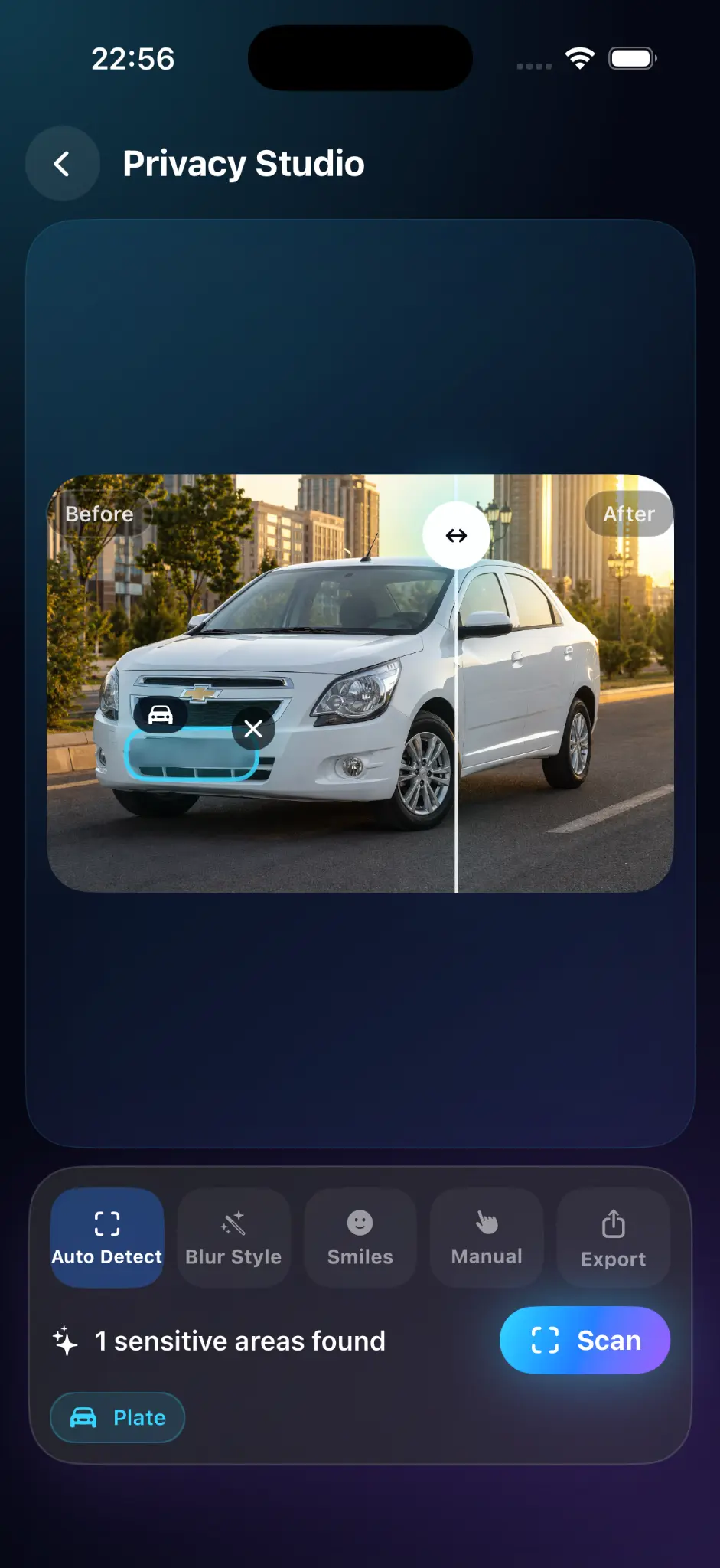
- Select each face and each license plate.
- Apply strong blur so features and characters are not recognizable.
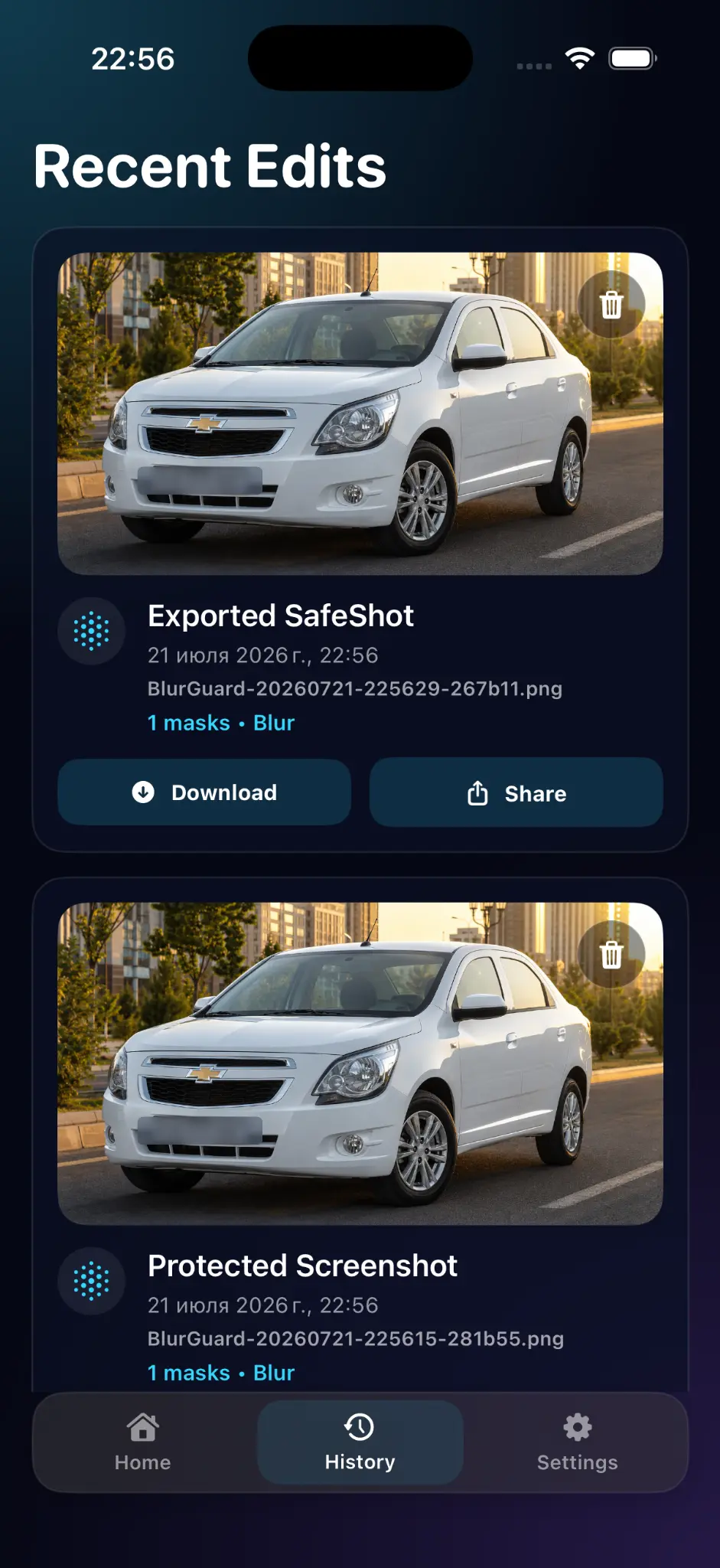
- Export a new copy and keep the original private.
Don't forget the hidden details
Check reflections in windows and mirrors, house numbers, street signs, and parked cars in the background.
Remove location data before sharing
Photos can carry location information. Before sharing from the Photos app, open the Share sheet, tap Options, and turn off Location so the copy you send does not include it.
Frequently asked questions
Do I have to blur faces in photos I post?
Rules vary by country and context. Blurring is a good habit when others did not agree to be shown.
Is a mosaic effect better than blur?
Either works if it is strong enough that the details are not recognizable.
Can I blur a license plate that is partly visible?
Yes. Cover the whole plate area to be safe.