App Store screenshots must match the sizes Apple requests. This guide explains how to plan sizes, prepare images, and avoid rejections.
Apple’s current screenshot specifications
Start with the official requirements
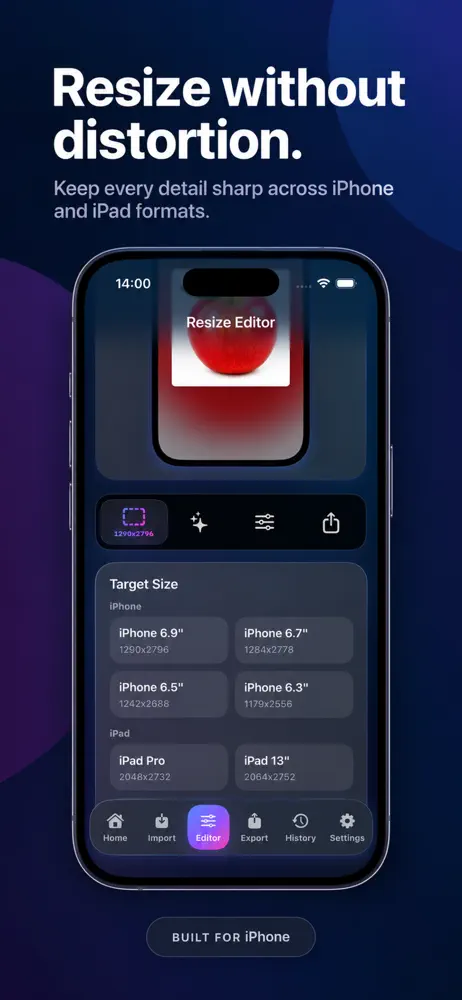
Apple lists accepted screenshot sizes for each device class in App Store Connect. Required sizes depend on the devices your app supports. Provide the largest size for each device family where possible, and Apple can scale it for smaller ones.
Example screenshot sizes
- iPhone 6.9-inch: 1320 × 2868 px (portrait) or 2868 × 1320 px (landscape)
- iPad 13-inch: 2064 × 2752 px (portrait) or 2752 × 2064 px (landscape)
- These are accepted examples, not the complete list. Check Apple’s current specifications for your app’s supported devices.
Prepare screenshots
- Capture on the correct device or simulator.
- Keep the original aspect ratio.
- Export PNG or JPEG at the exact requested size.
- Make sure text is readable in a small preview.
- Keep the same style across all screenshots.
Tips for better conversion
- Put the key benefit in the first two screenshots
- Use short captions
- Show real app screens, not mockups only
Common mistakes
- Stretching an image to fit
- Using the wrong orientation
- Leaving private data in the screenshot
- Uploading blurry images
Frequently asked questions
Do I need screenshots for every device size?
Not always. Check which sizes App Store Connect marks as required for your app.
PNG or JPEG?
Both are accepted. Use the format that keeps text sharp.
Can I use frames and backgrounds?
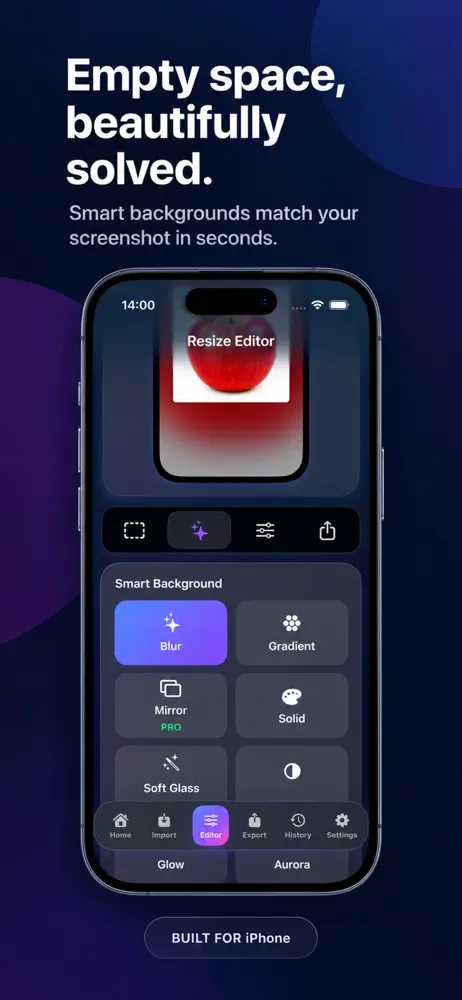
Yes, if the screenshot still clearly shows the app, within Apple's guidelines.
Related app
Mockora: Screenshot Frames
Create polished screenshots with frames and backgrounds.
Explore the app